Attribute Aggregation
Introduction
Attribute Aggregation aggregates the records of the input attribute data based on values of the group fields. You can choose which fields to keep to the new data, and set different merge rules for different output fields.
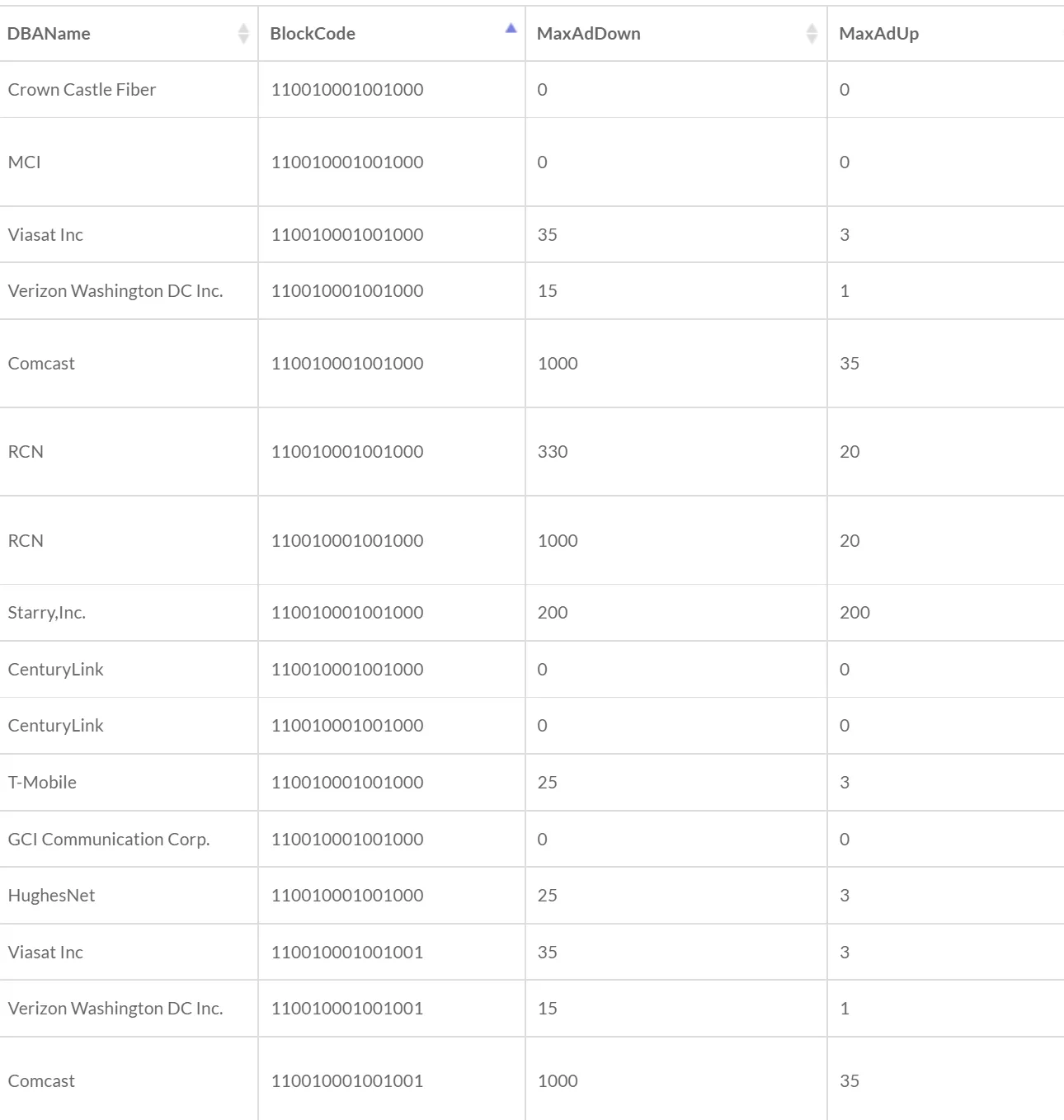
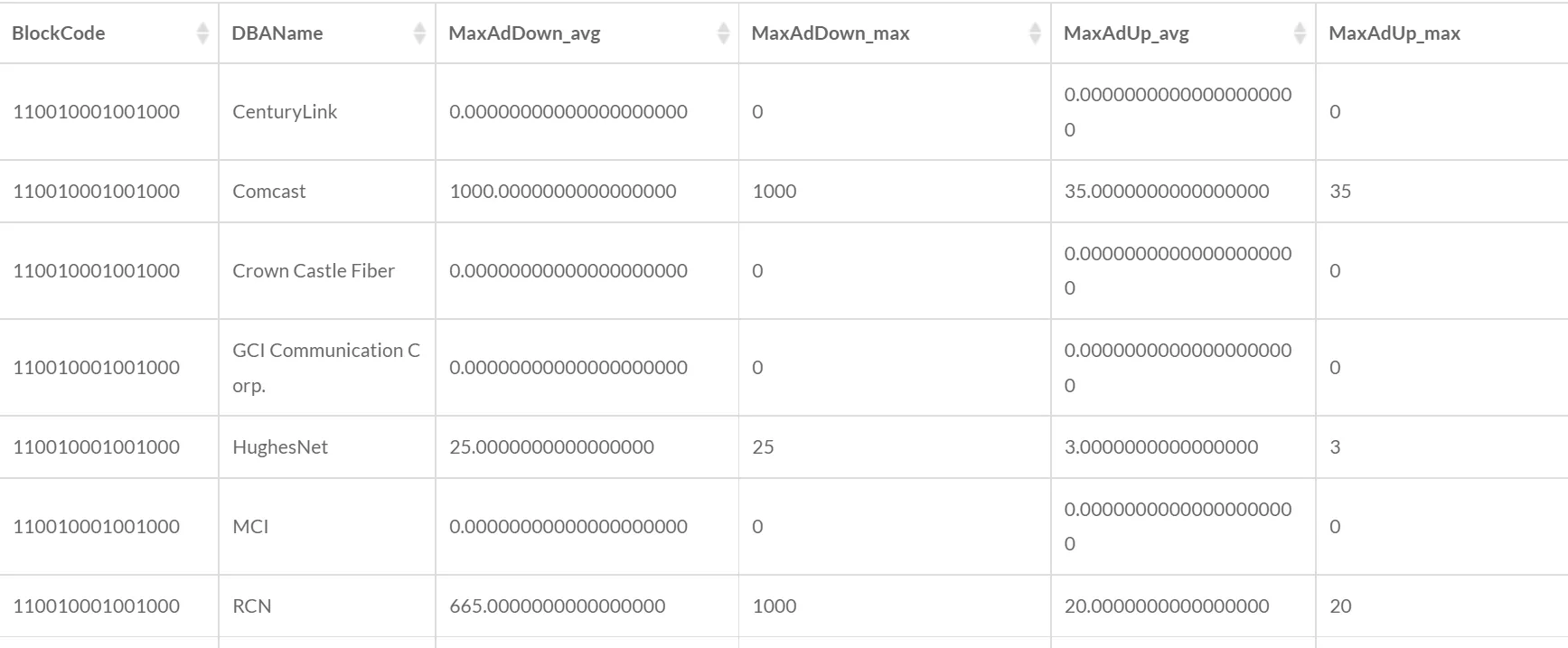
For example, the input data above are the broadband deployment data for blocks in an area. The block FIPS code BlockCode and the provider DBAName can be the Group Fields, and the values in the same group will be aggregated. The max advertised downstream speed MaxAdDown and the max advertised upstream speed MaxAdUp can be selected to be added to the new output data. Merge rules (e.g. Average, Max) should be set for each output field. And the output data could be as follows:
1. Set the input data

- Input Data: Attribute data only.
2. Set the group fields

- Group Fields: The values of the group fields are used to divide the records into different groups. The records within the same group will be aggregated.
3. Set the output fields

- Output Fields: The fields to be added to the new data.
- Merge Rule: The rule to merge the values of multiple records within a group.
- Join by Semicolon: Concatenate the values of multiple records within a group with semicolons.
- Distinct Join by Semicolon: Concatenate the distinct values of multiple records within a group with semicolons.
- Sum: Calculate the sum of the values of the records within a group.
- Average: Calculate the average of the values of records within a group.
- Count: Calculate the number of the records within a group.
- Count Distinct: Count the number of distinct values of the records within a group.
- Min: Use the minimum value of the records within a group.
- Max: Use the maximum value of the records within a group.
- Standard Deviation: Calculate the standard deviation of the values of the records within a group.
4. Set the output data

- Output Data Name: If no name is set, the default is “toolName_time”.
5. Submit
After completing the above settings, click Submit to start the tool.
When it finishes successfully, a message will be shown at the top of the page. You can click the Open Data button to start accessing the data or go to the Data page to view it.