Field Calculation
Introduction
Calculate the value of a field for spatial data or attribute data. You can create a new field or update an existing field.
1. Select data

The Field Calculation tool is applicable to both spatial data and attribute data.
2. Set the fields

- Calculation Type: you can choose Create a new field or Update an existing field.
- New Field Name: When creating a new field, you can set the name of the new field.
- New Field Type: When creating a new field, you can set the type of the new field, including the text type or the numeric type.
- Existing Fields: When updating an existing field, you can select an existing field. Multiple existing fields can be updated at the same time, and there is an expression input area for each exsting field.
3. Input the calculation expression
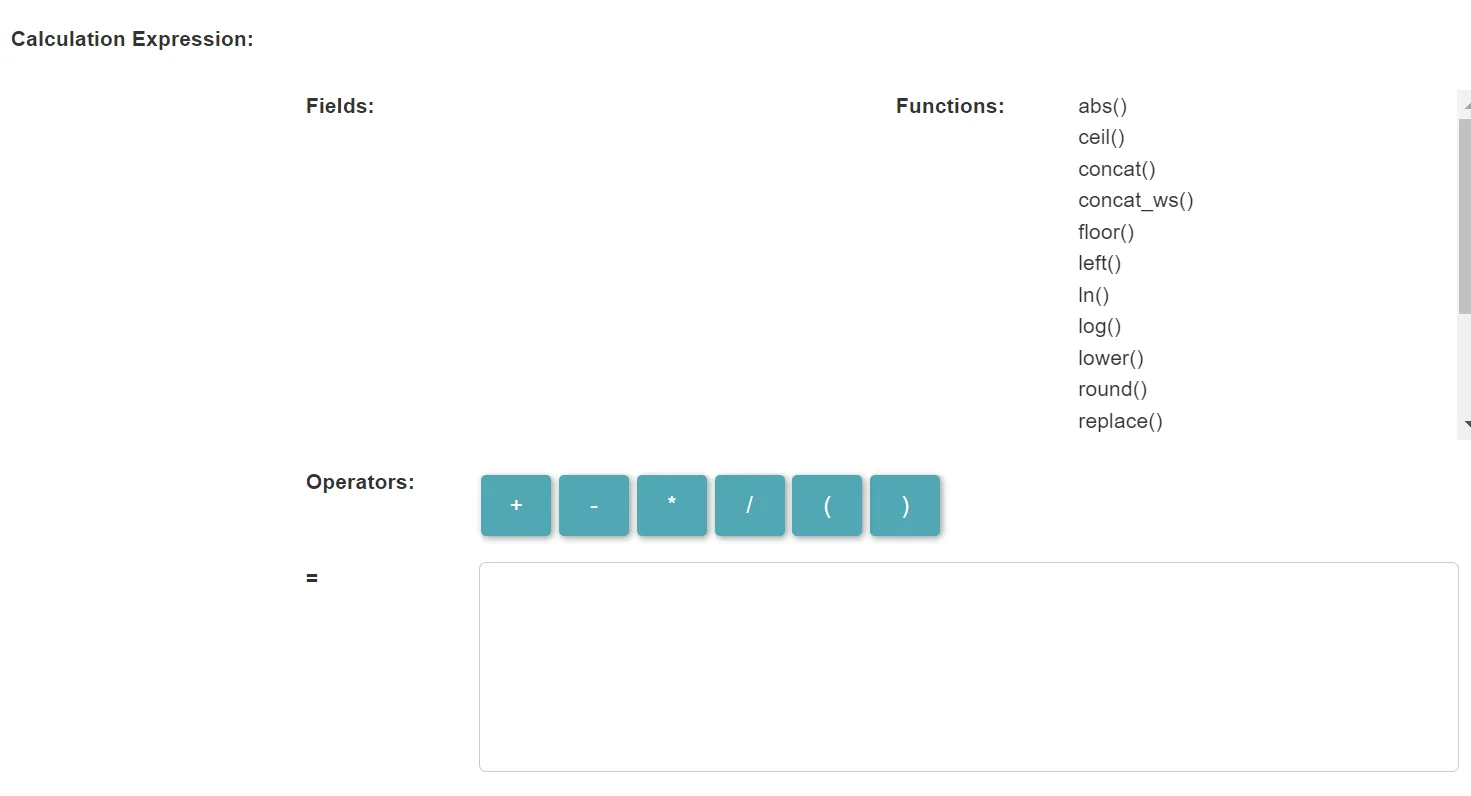
- Field List: It lists all the fields of the data. You can click on a field to add it to the expression input area. You can also enter the field name directly in the input area manually.
- Function List: It lists the functions that can be used. You can click on a function to add it to the expression input area. You can also manually enter the function name directly in the input area.
- Operators: The list of available operators. You can click on an operator to add it to the expression input area. You can also enter it manually directly in the input area.
- Expression: The SQL expression used to calculate the value of the field.
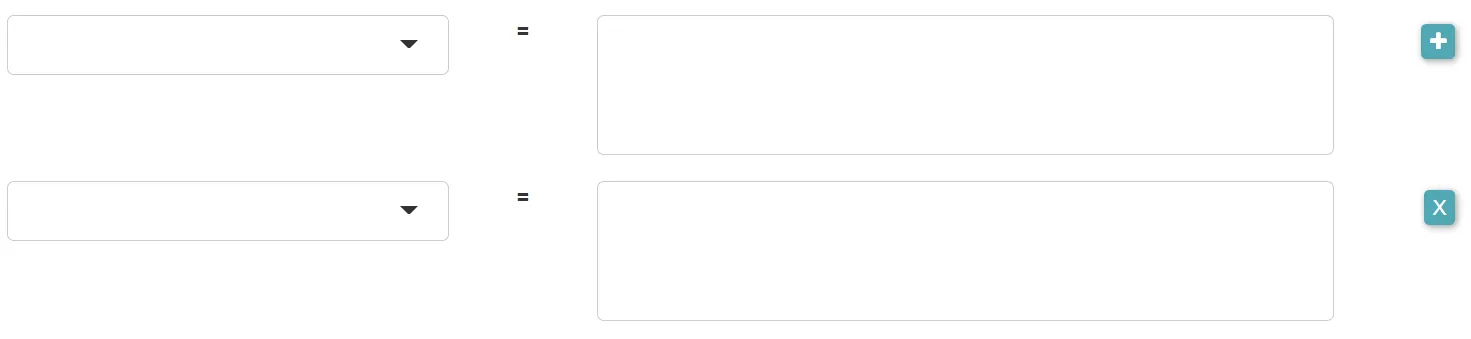
- For each field to update, there is an expression input area.
4. Set the output data

- Output Data Type: It can be spatial data or attribute data.
- Output Type: The input data can be updated, or new data can be created.
- Output Data Name: If no name is set, the default is “toolName_time”.
5. Submit
After completing the above settings, click Submit to start the tool.
When it finishes successfully, a message will be shown at the top of the page. You can click the Open Data button to start accessing the data or go to the Data page to view it.